

- Downloading the listing template
- Filling out the table
- Safety data sheets
- Product photos
- Product parameters
- Uploading/sending the listing template
- Common mistakes
- FAQ
Downloading the listing template
Always download a new listing template each time you list products to ensure all the required columns are up to date.
Suppliers working via the AlzaTrade platform
Product listing is done using Excel spreadsheets, which can be generated directly in the AlzaTrade admin interface under the Product listing and editing.
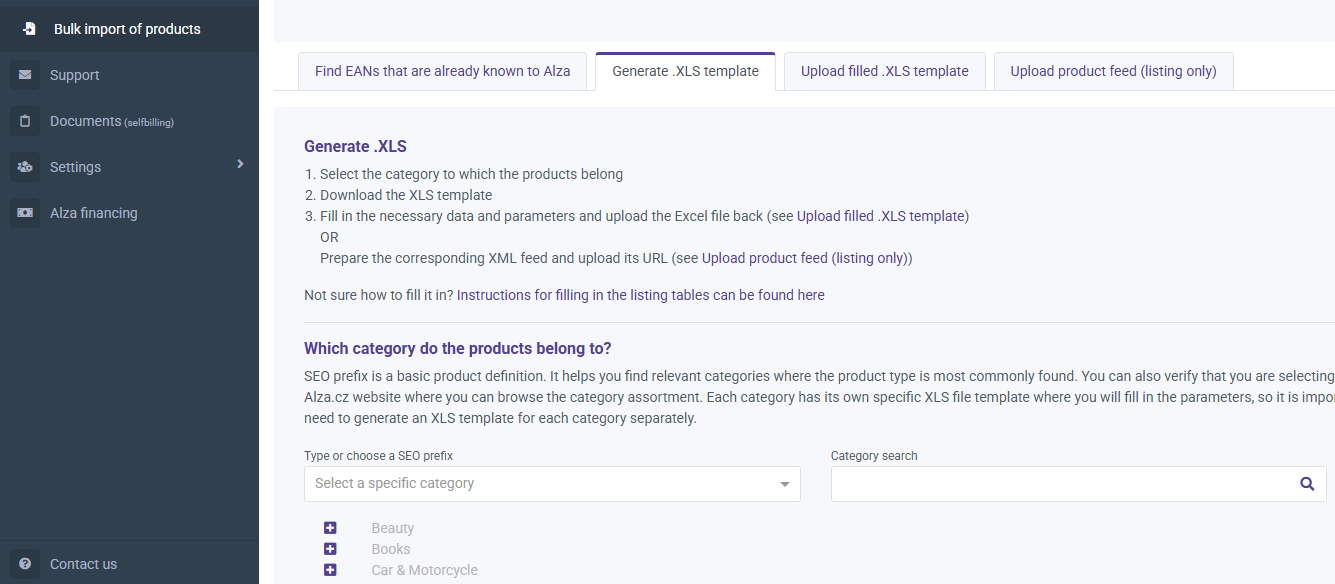
Category selection
Choose the most specific category possible for your products. The easiest way is to find the most similar product on Alza’s website and navigate to its category via the breadcrumb trail. You can then copy the category ID into the search field. See the fridge example below. You can also search for a category using its name or a keyword.
In the admin interface, you will see the lowest available category level. Some categories are automatically filled from their parent category and may not be visible. Locked categories (marked with a padlock) require approval from Alza to list products in them. If you can't find a suitable category, choose the closest one or contact the Alza Trade team.
Once you’ve selected a category, an XLS listing template with all required information and parameters will be generated. If you have products in multiple categories, you must download a separate template for each one (maximum 5 at a time).


Suppliers delivering to Alza’s warehouse
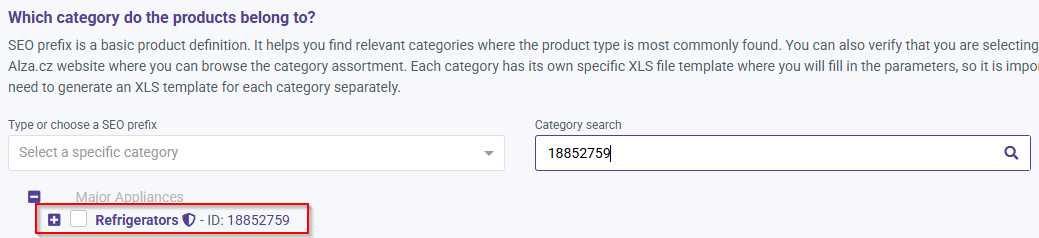
- Suppliers delivering directly to Alza’s warehouse should download listing templates from the website https://listing.obsahovka.eu/cs/product_listing/find_listing_table
- You can find the category by using a keyword (Prefix) or the category ID. The easiest method is to find a similar product on Alza’s website and navigate to the category through the breadcrumb trail. Then copy and paste the category ID into the search field. See the refrigerator example below:
- Once you’ve selected the target category for your products, the final step is to choose a template. This will add the parameters required for that specific product segment/unit into the main spreadsheet. Select a template by clicking on the drop-down menu labeled “Select a template…” (e.g. refrigerators - MDA, mixers - SDA, headphones - Audio/video)


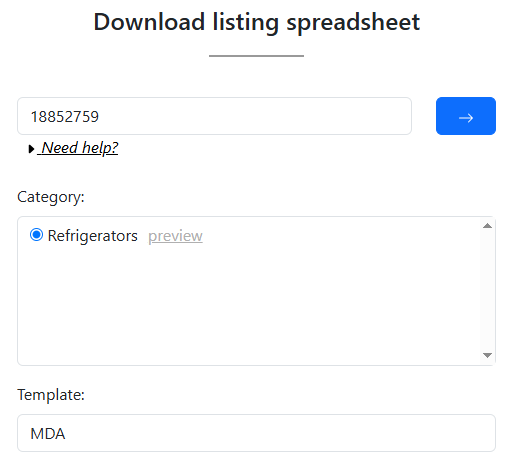
If searching by keyword (Prefix), choose the category with the highest percentage match for your products. Alternatively, verify the placement of similar products as mentioned in the previous step.
Filling out the table
Bolded parameter columns are mandatory – these must always be filled in, otherwise the products cannot be listed. We recommend completing all parameters for greater visibility on the website – customers use them to filter products, content is generated from them, they help automatically categorise products, and they connect products via parameter links (e.g. accessories).

i
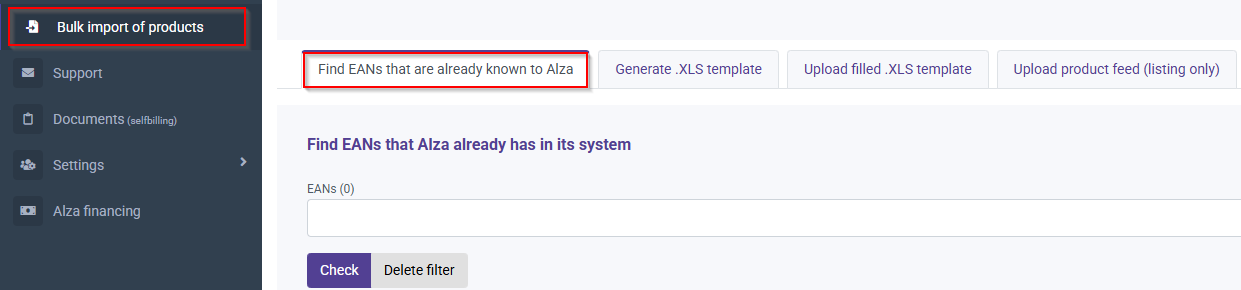
AlzaTrade suppliers: Before filling in the table, please check if the product is already in our catalog. Simply go to the "Listing and product modifications" section in the portal and search for the EAN. If Alza already knows it, there’s no need to enter it again.
MAIN_CATEGORY_ID / Main category ID
Category assignment by category number. Since you are downloading the table to fill in products for one category, the number for all products in the table will be the same.
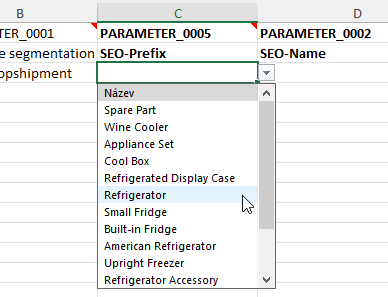
PARAMETER_0005 / SEO-Prefix
Select the appropriate prefix from the dropdown menu.
The dropdown provides a general selection of prefixes. Always insert only products relevant to the category into the listing table. For example, if you have a template for refrigerators, only refrigerators should be listed here. Dishwashers should be listed in their respective listing template, where the parameters for dishwashers are available.
If there isn’t an appropriate prefix for the product, choose the closest one from the list, colour-code the cell, and add your proposed prefix in the "Proposed values" sheet.
PARAMETER_0002 / SEO-Name
The maximum length of the product name is 100 characters including spaces.
Ideally, the name should not contain a prefix and its structure is as follows Manufacturer name + Product name.
If you offer the same product in multiple sizes, colours, etc., then distinguish these products in the name (white, black, size XL, size S, etc.).
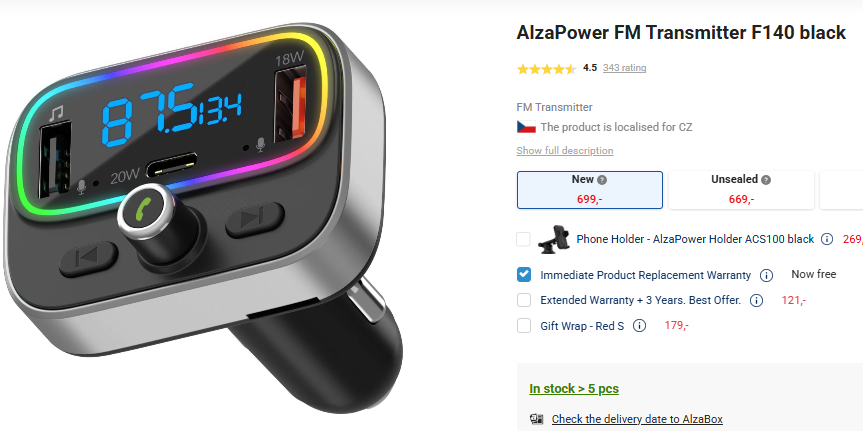
Warning: Do not use names in all uppercase letters like ALZAPOWER. Only the first letter of the name should be capitalised (unless there is another reason to do so).
PARAMETER_2015 / Supplier product code
Each product must have a unique code—it may match the Product Number. For AlzaTrade suppliers: The supplier code must also match the code entered for the product in the feed; otherwise, the products will not be displayed on the website.
PARAMETER_1933 / EAN code
Each product must have a unique EAN code. Duplicate codes will be returned for correction. If you do not have an EAN code, we recommend generating it officially (not making one up). EAN codes are also paired with online advertising (e.g., Google Ads), and in the case of duplicates, we cannot advertise the product.
PARAMETER_1934 / ProductNumber
Each product must have a unique code—it may match the product's Supplier Code as well as the product's EAN.
PARAMETER_0003 / NameExt custom
This is a short description displayed on the website below the product title.
It should be a concise and factual description of the product and especially its features.
Must not contain a prefix (see above).
Must not end with a period.
Always use brief phrases, not complete sentences.
The maximum length is 1024 characters including spaces.
i
Example of correct NameExt:
5.4" OLED 2340 × 1080, processor Apple A14 Bionic 6-core, internal memory 64 GB, rear camera 12 Mpx (f/1.6) + 12 Mpx (f/2.4), front camera 12 Mpx, optical stabilisation, GPS, Glonass, NFC, LTE, 5G, UWB, Lightning port, water-resistance IP68, single SIM + eSIM, unlocked, fast charging 20W, wireless charging 12W, battery 2227 mAh, iOS 14
i
Example of inappropriate NameExt:
Introducing the beautiful iPhone 12 Mini, inspired by the angular design of the iPhone 5. And the hardware! You can look forward to an OLED display, durable Ceramic Shield glass, a powerful Apple A14 Bionic chip, MagSafe, and a dual camera.
PARAMETER_0004 / Manufacturer
The manufacturer's name (without Ltd., Inc.). The maximum length is 30 characters, including spaces.
MANUFACTURER_CONTACT
Parameter "Manufacturer contact information" - information about the manufacturer in the EU, importer, authorised representative, or service provider. This column is mandatory for each product.
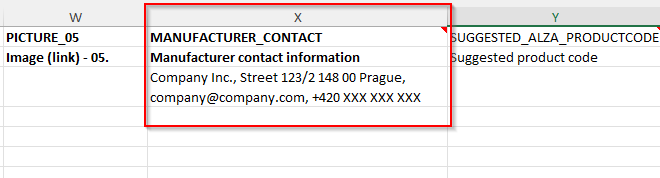
This should include:
- The name of the responsible entity for the European market
- The registered address
- Contact information – e-mail, phone number, or a link to a website with a contact form
i
Example: Company Inc., Street 123/2 148 00 Prague, [email protected], +420 XXX XXX XXX
PARAMETER_5135 / Eshop price with VAT
Selling price in CZK - only important for listing. (For AlzaTrade: After listing, the price will automatically update from your availability feed.)
PARAMETER_7152 / 7152 / 7151 / Packaging size
The size of the shipping packaging is always stated in centimeters.
PARAMETER_7153 / Weight incl. packaging (cons.) [kg]
The weight of the product with packaging. Always state in kilograms.
PARAMETER_5131 / Specification description
Long/detailed product description. It can be provided as a link to the specific product or as plain text - no HTML code. We will use the specification in cases where we are not creating our own texts for the descriptions.
PRICE_COMPARER / Price comparison
A link to the product on Heureka.cz, Zboží.cz.
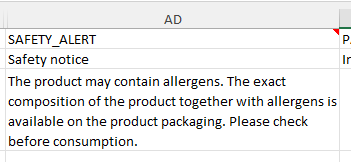
SAFETY_ALERT
Parameter "Safety warning" – specific warnings, instructions, or precautions for the safe use of the product if the nature and type of the product require such information.
DOCUMENT_01 / Document link (manual, energy label, etc.)
Upload the URL link to the manual in .pdf format. You may use our portal our portal to generate the URL link. Only upload documents relevant to the product.
DOCUMENT_COUNTRIES_01 / Document language/country
Indicate the country for which the document is intended and the language in which it is written.
i
Have a multilingual document?
If the document is multilingual, you should include a URL link to the document in as many fields as the document contains languages.
Example: If the manual is written in Czech and Slovak, enter the URL link in DOCUMENT_01 and specify CZ in DOCUMENT_COUNTRIES_01. In DOCUMENT_02, enter the same URL and specify SK in DOCUMENT_COUNTRIES_02.
PARAMETER_26133 / Has a safety data sheet
This parameter and the 6 below relate to chemical and hazardous substances and mixtures that we must register on the website – see Safety data sheet – new requirements as of January 1, 2023.
If you enter YES, you must also include links to the safety data sheet according to the countries of sale in the following columns:
- SAFETY_SHEET_1 / Safety data sheet CZ
- SAFETY_SHEET_2 / Safety data sheet SK
- SAFETY_SHEET_5 / Safety data sheet DE
- SAFETY_SHEET_13 / Safety data sheet HU
Upload a URL link to the safety data sheet in .pdf format. You may use our portal to upload documents.
If your products are not subject to this legal requirement, enter NO in the relevant column.
PARAMETER_26129 / Has H statements
Select Yes/No depending on whether H statements (hazard statements) according to EU CLP regulation are provided for the product.
PARAMETER_26130 / H statements
Fill in only if the product contains H statements. If you entered No in the previous column, leave the field blank.
List them in the format: Hxxx Statement text.
E.g., H200 Unstable explosive. H201 Explosive; mass explosion hazard.
PARAMETER_26131 / Has P statements
Select Yes/No depending on whether P statements (precautionary statements) according to EU CLP regulation are provided for the product.
PARAMETER_26132 / P statements
Fill in only if the product contains P statements. If you entered No in the previous column, leave the field blank.
List them in the format: Pxxx Statement text.
E.g., P102 Keep out of reach of children. P103 Read label before use.
PARAMETER_26068 / Has UFI code
Select Yes/No depending on whether the mixture has been assigned a UFI code (only for chemical mixtures classified as hazardous).
PARAMETER_26128 / UFI code
Fill in only if the product has been assigned a UFI code. If you entered No in the previous column, leave the field blank.
Provide the 19-digit UFI code (a combination of numbers and letters) that identifies the chemical mixture.
E.g., YV9K-3F20-WE2T-5M61
i
Example how to fill in safety obligations
For this example product, it is mandatory to provide safety data sheets in all languages, H statements, P statements, and the UFI code. In the columns marked in bold, write "Yes" and fill in all required details in the table.

For this example product, there is no obligation to provide safety information (e.g., it does not contain chemical substances nor is it flammable). In the table, fill in only the mandatory columns marked in bold and enter "No".

PARAMETER_26127 / EAN Master carton
Fill in only if the product has its own master carton EAN code that is different from the product's EAN code.
Product photos
Always insert using a direct link to the specific image—do not use data rooms, Google Drive, etc. You may use our portal to upload product photos and other documents.
The template includes columns for up to 5 images. However, you can add more if needed — simply duplicate the columns and continue the numbering sequence, e.g., PICTURE_06, PICTURE_07, etc.

Images must be in .jpg, .png or .webp format.
The image in the first position is the most important and must meet the following criteria:
- The image must be of the product itself on a white background
- The image must have a resolution of at least 600 pixels on one side
- The image must not contain any text or watermarks
Example of a good main image:
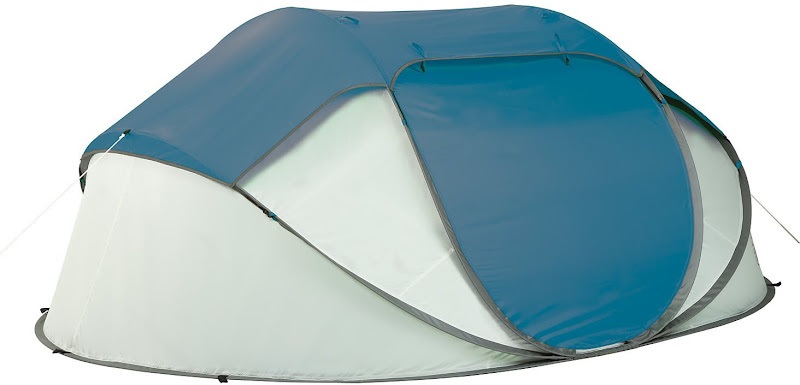
Example of a bad main image:

Subsequent images will be included in the product gallery. Requirements for gallery images:
- Must have a minimum resolution of 360 × 360 pixels
- They do not have to be on a white background
- They can be product details or lifestyle images
- May include English text (Czech or other languages only if an English version is also provided)
Product parameters
Each template contains a set of parameters to be completed, some of which are marked in bold as required parameters. Without this information, the table will be returned for completion. For parameters with multiple options, only one option is required.
Of course, it may happen that the offered value of a parameter is not available for a particular product, or that the parameter is not at all suitable for a particular product. You can write this information directly into the completed table, either under the relevant parameter or at the end of the table. We can then add the new value to the table if necessary.
We recommend that you fill in as many of the offered optional parameters as possible. This will improve the discoverability of your products on the store's website, which can lead to higher sales. It will also help to create more comprehensive texts.
Why product parameters matter
Benefits of properly filled parameters
- Helps customers choose the right product
- Ensures correct category placement based on parametric data
- Auto-generates a complete short product description
- Creates more detailed and accurate product descriptions
- Links to related products (e.g., accessories)
Risks of incorrectly filled parameters
- Product won’t appear in filtered searches
- Missing from parametric categories (e.g., front-loading washing machines)
- Higher likelihood of returns, claims, and customer inquiries
- Inadequate short/long product descriptions
There are two basic types of parameters to be filled in:
1. Parameter with a value listed in the drop-down list and on the "List of values" sheet. If you need to suggest a new value, leave a comment in the relevant cell.
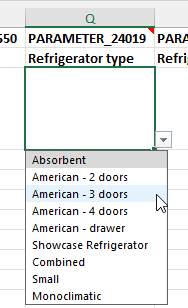
2. Numerical values - These parameters don’t have a drop-down. Enter plain numbers without units. The required unit is always specified in the second row beneath the parameter’s name.

Uploading/sending the listing template
For suppliers using the AlzaTrade platform
Go to the AlzaTrade portal portal and click the green button “Upload .XLS template”.
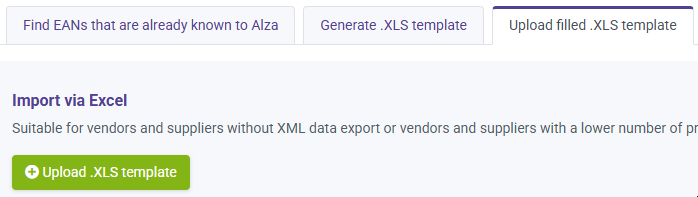
A window will appear where you can drag and drop your filled-out file or select it manually from your computer. You can also add a comment for the listing team.
The system will check for completeness and allow upload only if the template is correctly filled.
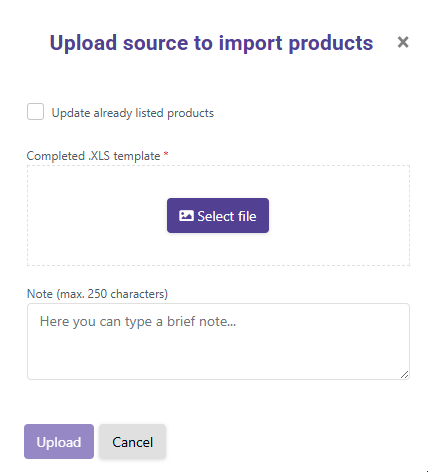
After clicking “Upload”, the sheet will be added to the listing queue. You’ll be notified once the listing is processed. Currently, the process can take from several days to a few weeks, depending on data quality and overall workload.
You’ll know the upload was successful if your file appears in the “Uploaded files” section:
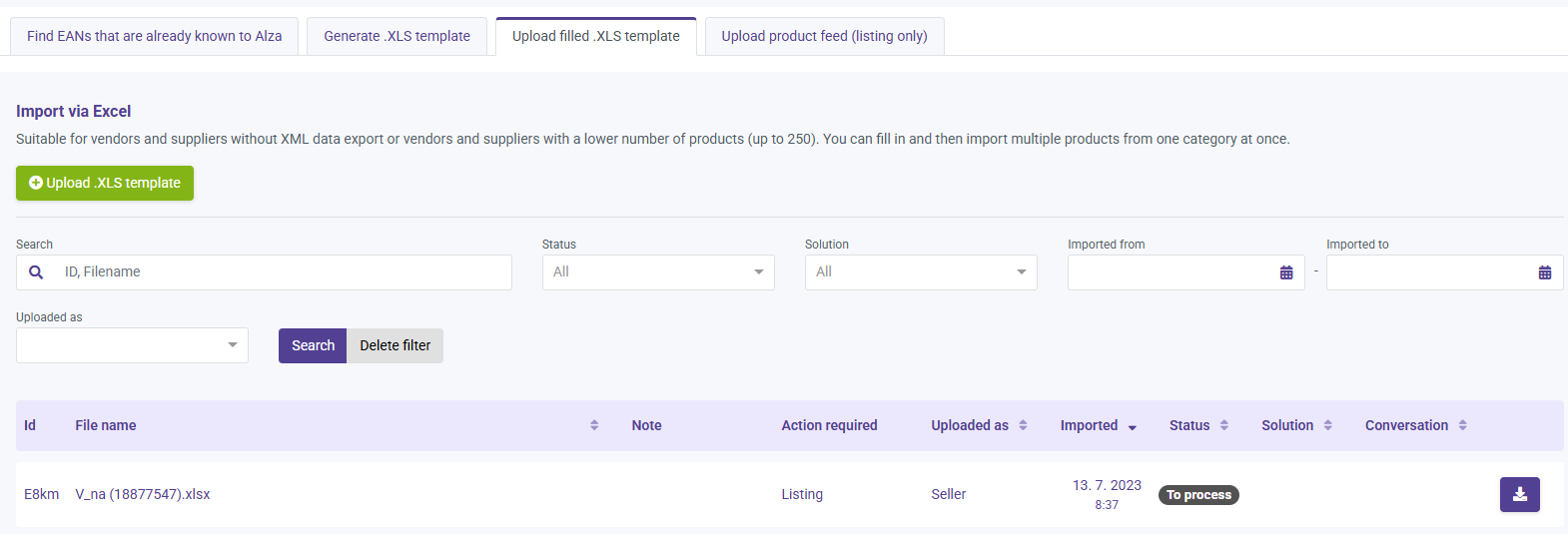
Listing statuses
- Status: Awaiting processing - The sheet has been successfully uploaded and is waiting in the queue. The wait time depends on the number of uploads from all suppliers and your overall supplier rating (frequent submission of incorrect templates lowers this rating).
- Status: In progress - If the sheet is complete and error-free, listing usually occurs within a week. If errors are found, it’s sent back for correction, which can delay the process — even if you fix it promptly. Correct submissions from other suppliers take priority.
- Status: Closed/Approved - If all listing conditions are met (logistics, warehouse, availability feed), the product should appear online within 24 hours. If not, please contact [email protected].
- Status: Closed/Rejected - If rejected, it means your file was not listed — typically due to issues identified by a product specialist or unmet listing conditions. The reason for rejection will be shared in the task comments.
How to activate your products
After your products are listed, go to the Product status tab in AlzaTrade, select the products, and click “Change status” → “Activate”.

Suppliers delivering to Alza’s warehouse
- Check if you have filled out the listing table correctly in the portal https://listing.obsahovka.eu/cs/product_listing/validate_listing_table/
- If no errors are found, send the file to your purchasing contacts. If your products are approved, the file will be entered into the listing queue.
- Tables submitted for listing are typically processed within a week, unless we need to return the sheets to suppliers for completion/correction. In such cases, the processing time is significantly extended.
Most common mistakes
- Duplicate codes (EAN, PN, Supplier Code): Every product must have unique codes, even if it's a variant of the same product.
- Unsuitable images –The main image must always have a white background and a resolution of at least 600px.
- Missing mandatory parameters – Bold parameters must be filled in or explained via a comment if they are not.
- Improper text content – Whether it's SEO titles, NameExt, or specifications, they must always follow the rules (see above).
- PDF files (manuals, info sheets, etc.)must never be uploaded to https://imgbb.com/. This platform is for images only, and PDFs will be corrupted.
These are the most common errors that ALWAYS result in your template being returned. Frequent rejections lower your supplier score and delay future listings.
FAQ
What if I want to use my own texts instead of the generated ones?
For most prefixes, we have our own (generated) descriptions, which are created from the parameters provided by the supplier. The more parameters that are filled in, the more comprehensive the description will be. We only use supplier texts in the event that we do not have these generated descriptions for a given prefix.
If our generated description is on your products, but you do not like it, we can insert yours. In this case, however, you will have to pay for a premium description. Contact the premium description processing at [email protected].
If your products appear on the Alza website without descriptions after listing, it is usually not because the descriptions were not propagated, but because they are still in the queue for generation or propagation. It typically takes 14 days to 1 month to propagate descriptions.
How and where to upload images?
Images for listing must be provided as a direct link to the specific image (not to a gallery of images or a product shop page, etc.). If you are unsure where to upload the images, you may use our portal.
Additionally, the images must meet all the requirements outlined in the Product photos section.
What to do if I can't find a table for a category?
The easiest way to find the right category is to search for the most similar product on the Alza website and click through the breadcrumb navigation to its category — see the example below. Then, enter the category ID into the search field to download the listing template. If you can’t find an exact match, choose the closest possible category.


Some categories are filled automatically based on parameters, and therefore don’t have a downloadable template. Products are assigned to these categories based on specific parameter values. For example, men’s and women’s underwear is listed under the general Underwear category. The products are then distributed into more specific categories based on filled parameters such as Type, Gender, etc.
What if I need to make changes after listing?
Edits are made using the same listing templates. Detailed instructions on how to submit edits can be found in the article Editing Products.
How can I simplify the product listing process?
To save time and ensure everything is filled out correctly, we offer a paid listing service that handles the entire product listing process for you. You simply provide the materials, and we take care of the rest. Learn more in the article Paid Product Listing.
Who to contact when I need help?
Suppliers using the AlzaTrade platform
- [email protected] – Product listing, selecting the appropriate category, clarifying issues in the listing sheet, post-listing product updates (images, parameters, names), feed verification (only feeds intended for product listing), and premium (custom) product descriptions.
- [email protected] – If your products are not visible on the website after listing, or for issues related to shipping, warehousing, availability feeds, or pricing.
Suppliers delivering to Alza's warehouse
- [email protected] – For product listing, category selection, table clarification, post-listing edits (images, parameters, names), and premium descriptions (if you're not part of the implant program).
- Your vendor content specialist - If you're part of the implant program - this is your main contact for product listing and content creation.
- Your buyer – For visibility issues after listing, as well as any concerns regarding logistics, warehousing, availability feeds, or pricing.