
How to print from a mobile phone (GUIDE)
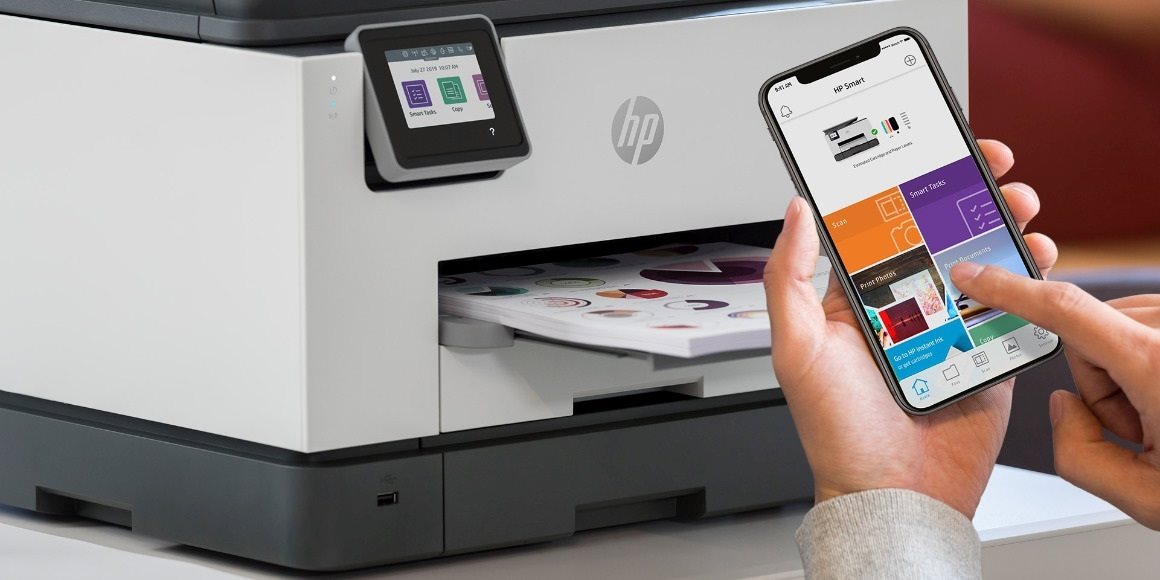
Nowadays, phones can do pretty much anything, and printing from a phone has become a common thing. It is an excellent advantage as it allows you to print photos and documents you have saved and captured on your phone. In the following lines, we will describe how to print from your mobile phone and explain all the possibilities that come with it.
How to print from your phone - CONTENTS
- Print wirelessly, but also via a USB cable
- How to print from a mobile phone via a USB cable
- How to print from a mobile phone via WiFi/Bluetooth
- Print photos from your mobile phone on the go with a pocket printer
Print wirelessly, but also via a USB cable
There are two options for connecting your phone to the printer. Wirelessly (Bluetooth, WiFi) and via a USB cable. The newest printers can wirelessly connect via WiFi or Bluetooth, and you will not need a USB cable in this case. However, older printers do not support such options, and therefore a USB cable will be necessary.
How to print from a mobile phone via a USB cable
This method is only worth using for printers that do not support wireless connectivity. To connect your phone to the printer, you will need a cable with a connector that fits your device. Then plug it into your mobile phone and connect it to the printer.
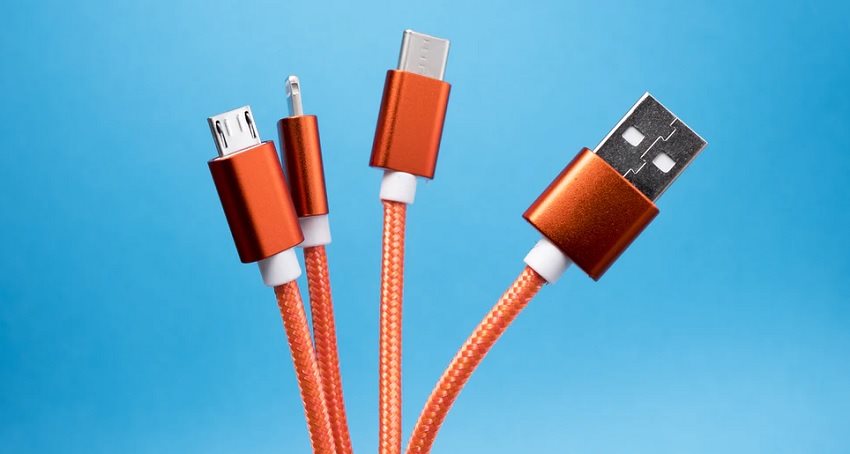
The printer should then connect to your phone automatically. The phone and printer will record a successful connection on screens or use an audible signal. After that, it depends on the type and age of your printer.
Before printing, you will have to download an appropriate app to enable successful printing from a mobile phone. Samsung and other brands of Android phones can download several different apps from the Google Play Store. From iPhones and other Apple devices, you can only print wirelessly. Here is a list of the best apps for Android:
- Brother: Brother Print Service Plugin
- Canon: Canon Print Service Plugin
- Epson: Epson Print Enabler
- HP: HP Print Service Plugin
- Lexmark: Lexmark Print Plugin
- Oki: Mobile Print
- Samsung: Samsung Print Service Plugin
- Xerox: Xerox Print Service Plugin
After connecting the printer to your phone, launch the appropriate app to allow you to print photos and documents from the phone. Select the files you want to print. The printer will then receive a signal from your mobile phone, add the documents to the queue, and print them automatically.
How to print from a mobile phone via WiFi/Bluetooth
Printing via WiFi or Bluetooth is a relatively simpler process. Most newer printers have wireless connectivity. To print from your mobile via WiFi, connect the printer to the same network as your phone.
In the case of a Bluetooth connection, you need to enable pairing on the printer. Then search for new Bluetooth devices on your phone. The printer connects to the mobile phone after a successful pairing. This way, you only need to connect once. After that, the two devices remember each other and will pair automatically in the future.
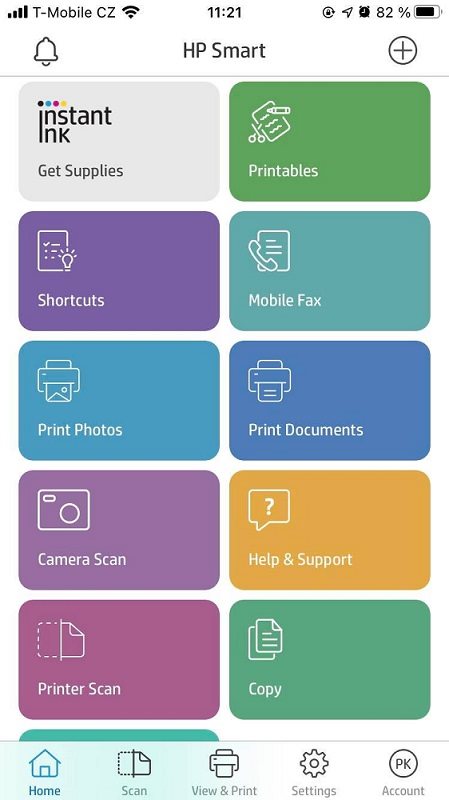
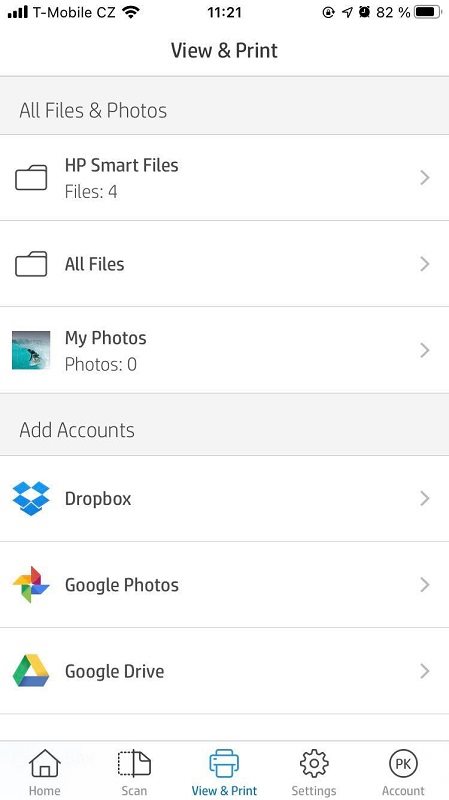
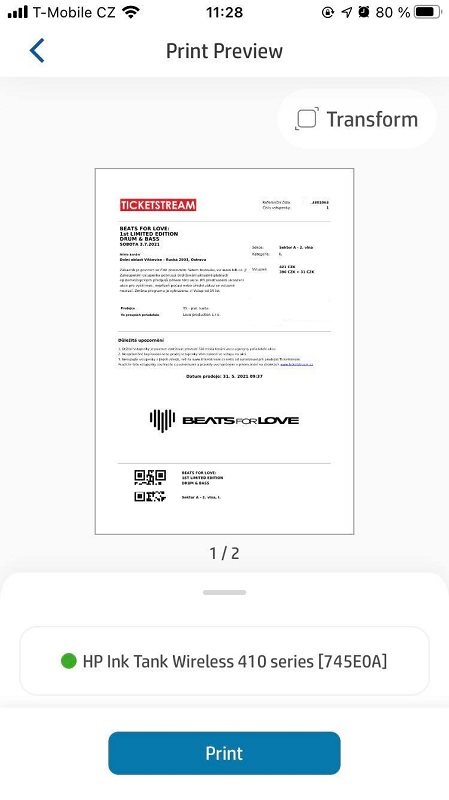
However, you also need to download a suitable application in this case. There are several different types to choose from, depending on the type of your printer. For example, you can even use native applications, for instance, Mobility Print for Android or AirPrint for Apple. Other applications from manufacturers:
- Canon: Canon PRINT Inkjet/SELPHY
- HP: HP Smart
- Epson: Epson iPrint
- Oki: Mobile Print
- Xerox: Xerox Workplace
- Samsung: HP Samsung Mobile Print
- Lexmark: Lexmark Mobile Print
Print photos from your mobile phone on the go with a pocket printer
Recently, pocket printers have become very popular. They offer a great way to print photos from your phone easily and anywhere. Pocket printers are particularly sought after by people who are busy at work or spend most of their time travelling away from home. You could say that it is a portable printer for mobile printing that saves time and energy.
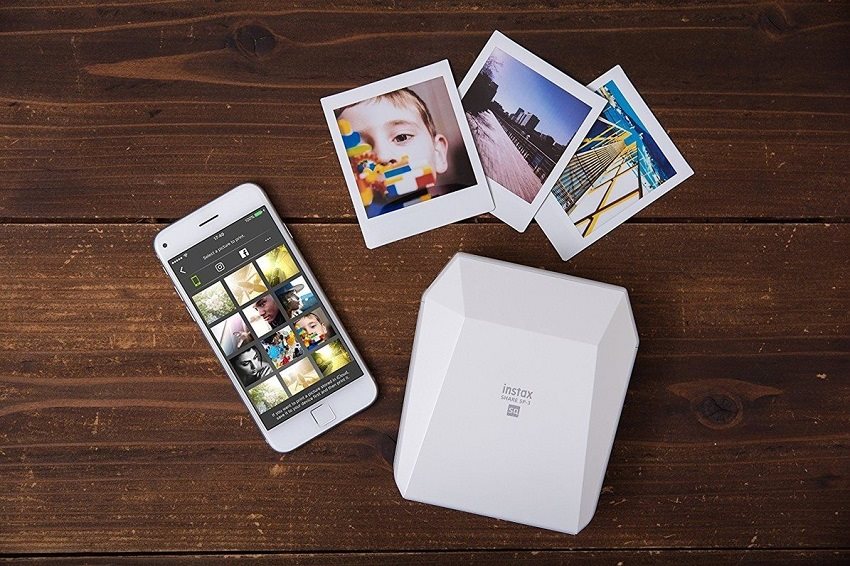
Pocket printers are small and battery-powered, so there is no need to find a power connection. They can print up to several dozen photos on a single charge. In most cases, they work via Bluetooth technology, which makes connecting them to your phone fast and straightforward.
- Samsung Galaxy A52 5G (REVIEW): Improvements in every way put it at the forefront of the mid-range
- Realme 8 5G and C21 (PREVIEW): the cheapest 5G phone and basic mobile for the frugal
- vivo V21 5G: a truly dazzling selfie
- Realme GT (PREVIEW): the ultimate dose of performance at a great price
- The HP Smart app does a lot, and it's easy to use
- How to print photos at home?
- How to restart your phone (HOW TO)
- How to save a drowned phone
- More articles in the Mobile category
Printing from a phone is now commonplace. You can connect your phone to the printer either wirelessly or via a USB cable. In addition, most printer manufacturers have an app that makes printing much more accessible. A pocket-sized portable printer will make all the difference for users who spend a lot of time away from home.